Undefined pop up error in Moodle

Moodle and TCOnline don’t play well together when you have tabs open for both at the same time. We are still investigating but here is what we can share.

The issue presents itself in a few different ways

  • You may get a small pop up window that just says “undefined”.
  • You may see an error saying “request headers too large”.
  • You may see nothing unusual but a page just doesn’t load completely or doesn’t seem to work properly.
  • It occurs most often with Quickmail and the participants list in Moodle but it can happen on any page.

What is the cause?

  • It appears to be caused when a user has TCOnline tabs/windows open in the browser at the same time as Moodle. The problem is caused by the TCOnline cookie.
  • It isn’t consistent, sometimes you can have TCOnline tabs and Moodle open without encountering any problems.

What is the solution?

  • Sometimes just closing the pop up and/or refreshing the page is sufficient.
  • Closing the browser (not just the tabs) and reopening it seems to clear resolve it.
  • Just closing the TCOnline tabs may help but not always.
  • Using a private window for one of them or a different browser for each will also avoid the issue.

We have been working with MoodleUS and IT but don’t have any details about a solution at this point.

What’s New in Moodle 4.5

We’re excited to announce that our Moodle learning management system will soon be updated from version 4.1 to 4.5. While this new release brings meaningful improvements to the user experience, teaching workflows, and overall performance, most are minor tweaks rather than major changes.

  • We have added the “Timeline” block to the Dashboard. This block will give students an overview of due dates for assignments and other activities across all courses.
  • You will see a new “Get Help” block in all courses. This block contains quick links to academic support resources for students. You can edit, move or delete this block if you wish.
  • Faster Course Editing:
    • You can now add an activity or resource in the desired location rather than having to add it to the bottom of a section then move it.
    • You can use “Bulk Actions” to move, copy or delete multiple items at once.
  • Adding an External Tool has changed. See this post.

As always feel free to reach out to your Instructional Technologist or Dave Tatem with any questions.

Combining Sections With a Meta Link

If you are teaching multiple sections of the same course you may want to combine all the students into one Moodle site so you don’t have to post course content multiple times. This is simple to do with a course meta link. You must have the Teacher role in each section for this, and if you are combining sections taught by different instructors contact us for assistance. NOTE: You cannot change the title of the course after doing this. If you would like to change the title of the course, please reach out to an instructional technologist.

Continue reading “Combining Sections With a Meta Link”

What’s New in Moodle 4.1

While there are many changes in this new version of Moodle, by far the most obvious is the navigation menus and icons.

If you have issues or questions please let us know https://edtech.domains.trincoll.edu/technologists/

Video Overview
The New Dashboard
Course Pages
For More Information

Video Overview of Changes

The new Dashboard

You will notice things have moved around on the Dashboard.

  • The old dashboard is on the left below and the new on the right.
  • The Course Overview Block now has been moved to its own tab.
  • Blocks that were displayed on the right hand side of the page are still there but now collapsed by default in the block drawer.
  • You will also see a button to turn editing on and off at the top right of every page.
Current Dashboard
New Dashboard

Course site pages

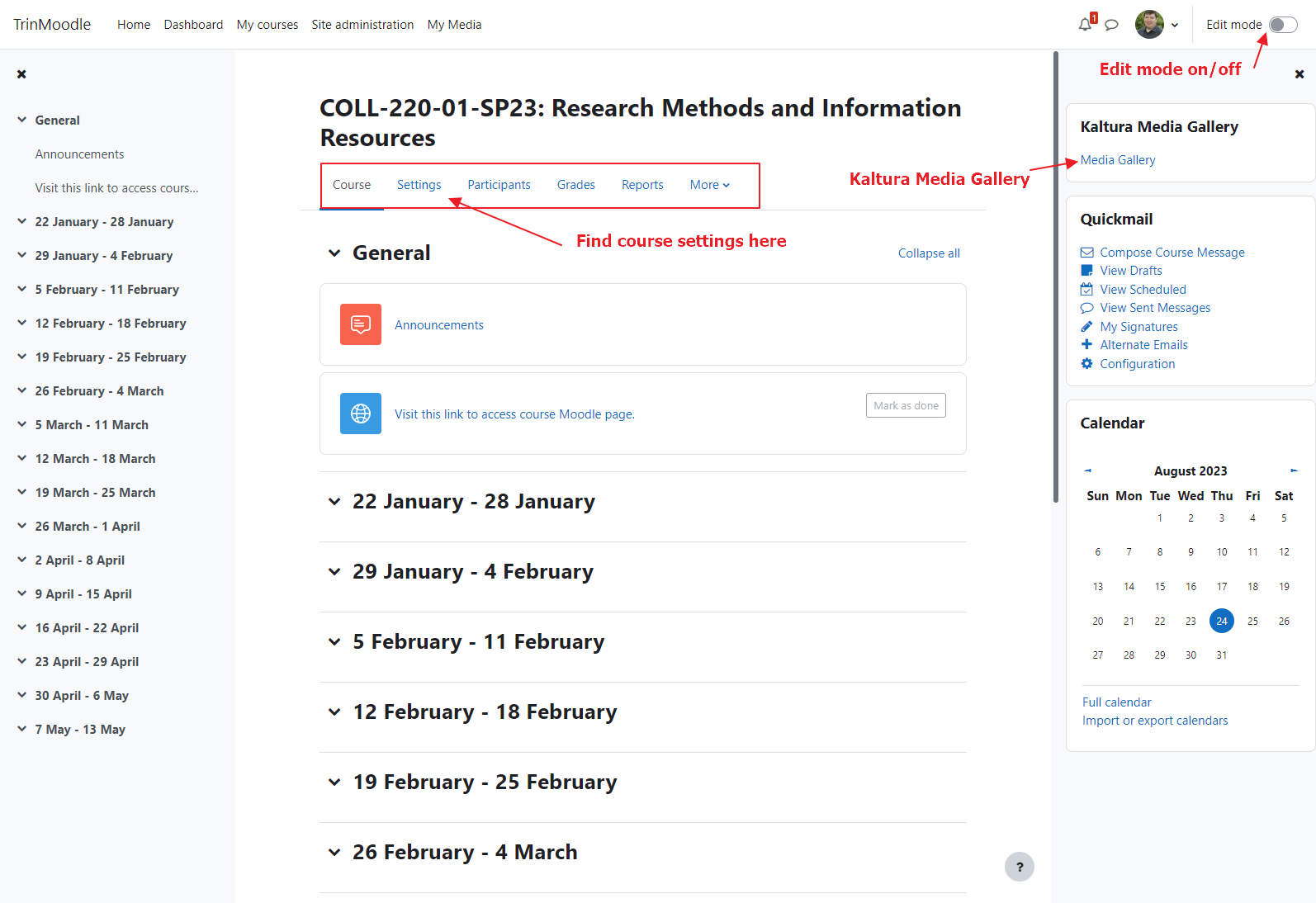
In your course site you will see a number of cosmetic changes:

  • You can open and collapse the navigation menu on the left, and the block drawer on the right.
  • The Kaltura Media Gallery is now in the block drawer on the right side of the page (used to be on the left)
  • Click My Courses to go back to the list of your courses.
  • The settings icon is replaced with the settings link
  • Participants and grades can be found in this same navigation menu rather than in the left hand navigation menu.
  • There are all new icons for files and activities.

For more information

To read more about the new features in the latest version of Moodle: